
SnipCC AI Chat lets you discuss screenshots; AI Work can use tools to complete tasks. Configure your own AI service, API key and model before use. Actual capabilities depend on the selected model and service configuration.
Configure an AI service
- Open AI service settings and choose a provider. For a custom service, enter its Base URL according to the provider's instructions.
- Enter the service's API key. This is an access credential: do not include it in screenshots, public tutorials or feedback.
- Select or refresh available models and check the connection. If it fails, check the address, key, connection and account quota.
- Save the configuration, open AI Chat and ask a simple question to check that the service responds.
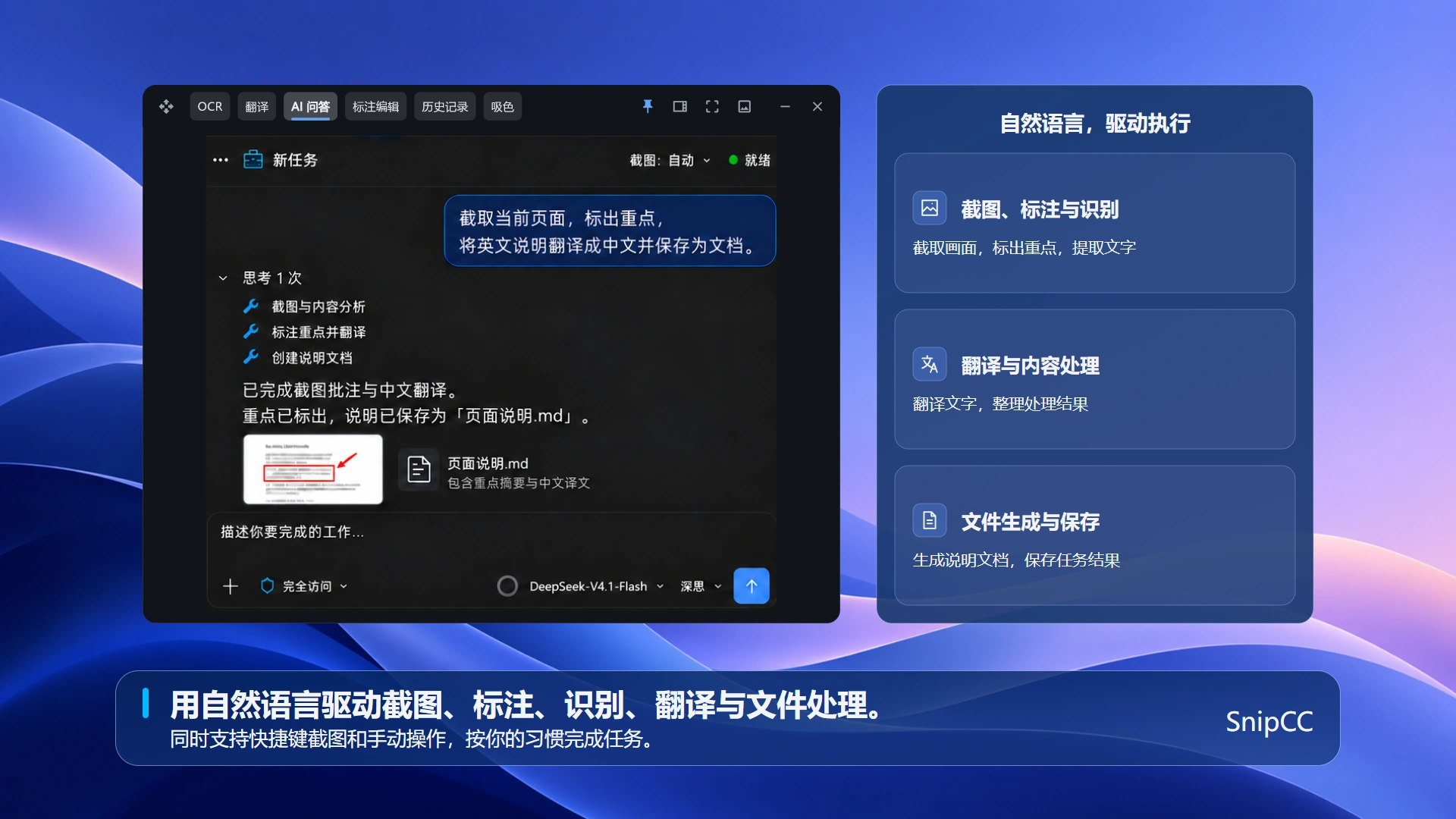
Chat about a screenshot
- Prepare the screenshot you want to discuss and redact sensitive information.
- Add a screenshot to AI Chat and select a model that accepts images. Text-only models cannot directly understand images.
- State your goal clearly, for example, “Extract the key points from this screenshot” or “Explain this error message.”
- Check the response against the image, especially numbers and specialized content.
Use AI Work tools
AI Work is a membership benefit. Describe the target, goal and save location, for example, processing a screenshot and saving the result. The model must support the relevant tool calls; its name alone does not establish its capabilities.
Check the target and preview before execution. If confirmation is requested, confirm before continuing. After execution, inspect the actual images or files instead of relying only on the AI response. Back up important files.
Fees, permissions and data
Basic features provide access to AI Chat; AI Work is a membership benefit. SnipCC membership does not automatically make third-party model calls free. Charges and quotas depend on the provider.
When using cloud AI, relevant text, images or attachments are sent to your configured service. Confirm that you may send the content. See Privacy Policy and Terms of Use.
Frequently asked questions
- API key is not configured?
- Check that the current provider has a valid saved key and the conversation's model belongs to the configured service.
- Model did not understand the screenshot?
- Check that the model accepts images and that the screenshot was added successfully. Alternatively, extract text with OCR and use that text in the conversation.
- Tools did not run or the result is wrong?
- Check membership status, model tool-calling support and permission messages. Narrow the task and inspect the results. Do not repeatedly run tasks that might overwrite files.
Where do I check services and model capabilities?
Open Cloud Models in Settings to manage providers, service URLs, API keys and models. Check Model Capabilities for configuration. Image input and tool calling are distinct capabilities; configure them according to actual model support. A working connection does not guarantee that the model can read images or call tools.