
Open OCR in SnipCC, select an image or screenshot, extract text with an available model and review it against the original.
Extract image text
- Prepare an image with clear text, or capture a screen region containing the text.
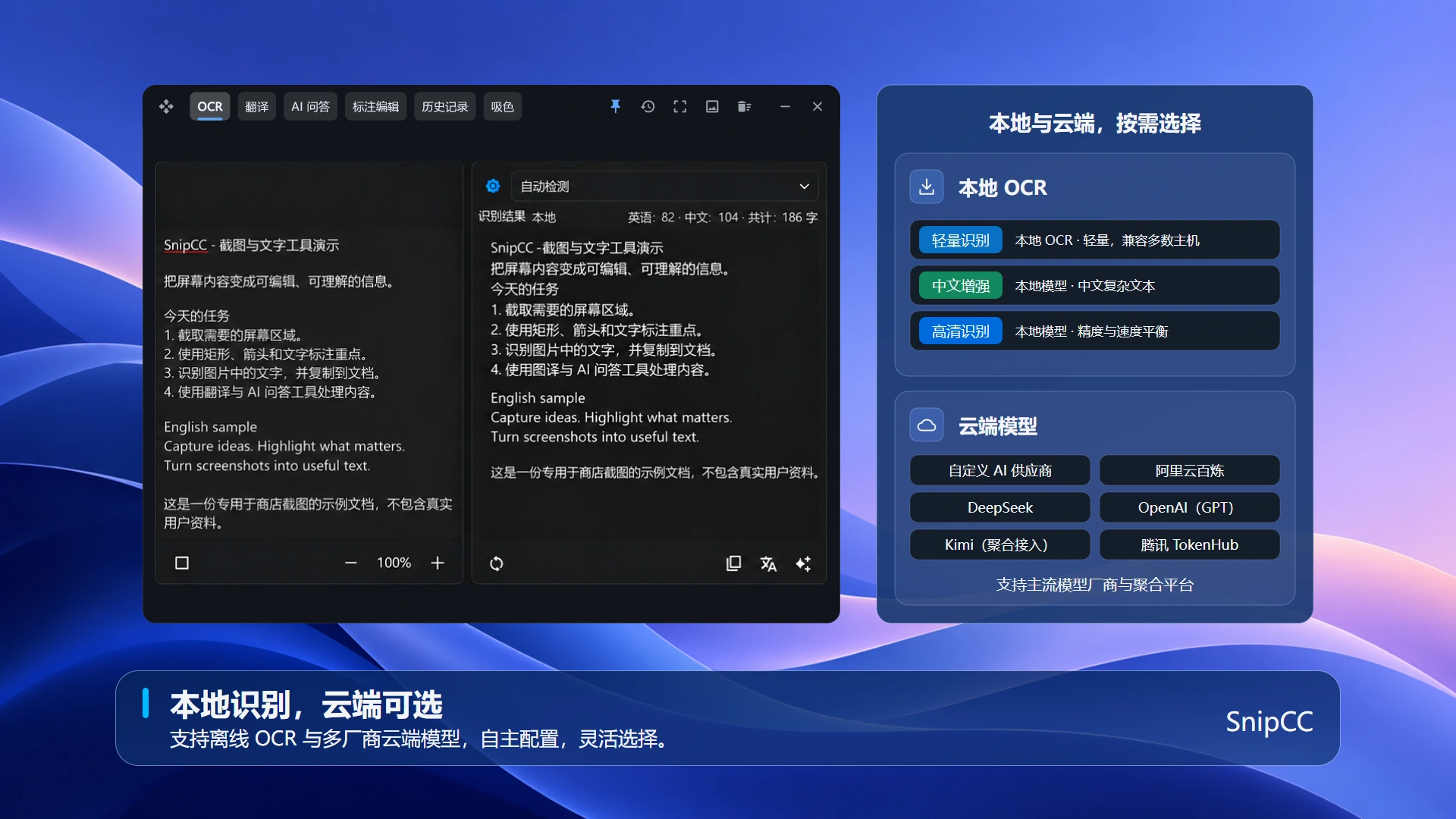
- Open OCR and select an installed local model or configured cloud recognition service.
- Run recognition and compare the results with the image, especially numbers, punctuation and proper names.
- Copy the reviewed text into your document.
Can OCR work offline?
After installing a local model, you can use its supported recognition capabilities. Initial downloads require an internet connection. Cloud OCR requires a connection and sends relevant content to the configured service.
Recognition is inaccurate?
Use a clear original image. Avoid tiny, tilted or obscured text. Language support and accuracy vary by model. Availability also depends on membership, device requirements, installation and service configuration. Review recognized text manually.
Next: Translate recognized text. For data handling, see Privacy Policy.
Configure an OCR model
Select an available OCR model. Install local models first; configure credentials for cloud recognition. Check supported languages and device requirements. Membership models also require an active membership.
Frequently asked questions
- Local model does not work?
- Confirm the model is fully installed and check device requirements and model support. Downloading models requires an internet connection.
- Cloud OCR failed?
- Check credentials, connection and provider quota. Confirm that sensitive images may be sent to this service before submitting them.
Edit and copy recognized text
You can edit recognized text in the results area. Correct it against the image, then copy it into your document; the app confirms that the recognized text was copied. To translate it, use the reviewed text in Text translation so recognition errors do not affect the translation.