
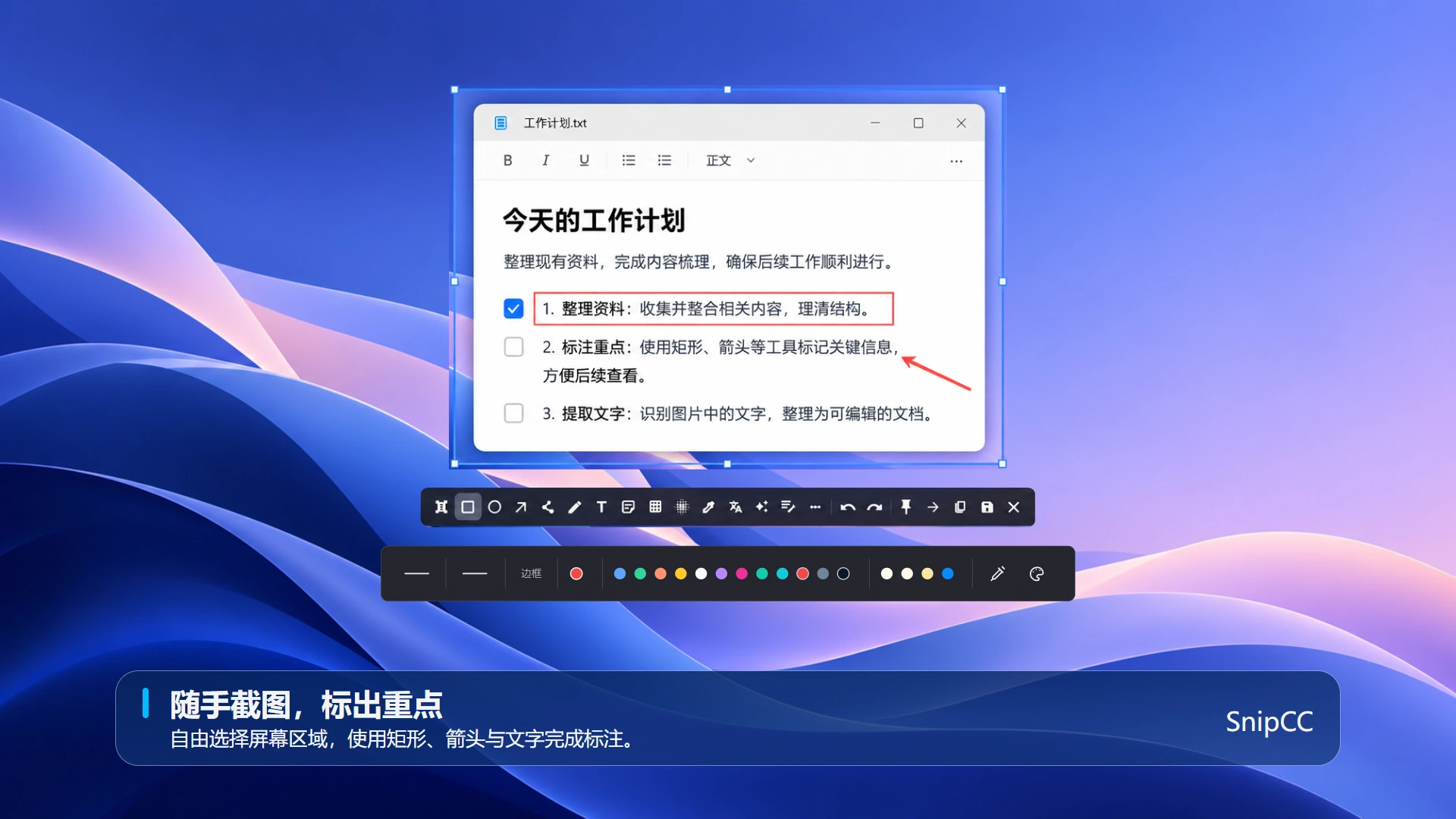
SnipCC supports region capture and annotation. Capture the area you need, then highlight information with rectangles, arrows or text.
Capture and annotation steps
- Open SnipCC, start capture and drag to select a screen region.
- Select a rectangle or arrow from the capture toolbar to highlight important areas or point to details.
- Use text annotations when an explanation is needed. Check for sensitive information before sharing.
- Save the screenshot and verify the actual export location.
What can I use it for?
Use screenshots and annotations for software feedback, instructions and organizing information. Redact sensitive information and check the final exported image.
Continue working with screenshots
See Image text extraction guide and Screenshot translation guide.
Save locations and keyboard shortcuts
Check annotations and sensitive information before saving. Images export to Pictures/SnipCC in your user directory by default. If you change the history image location under Settings → General → History save location, annotation and AI image exports use its exports subfolder; directly saved original screenshots still use their screenshot save path. History resources and the AI conversation database use different locations. View and adjust keyboard bindings in Shortcut Settings; actual keys depend on your local configuration.
Frequently asked questions
- Keyboard shortcut does not work?
- Confirm SnipCC is running and check for conflicts with other apps. You can change key combinations in Shortcut Settings.
- Annotations are unclear after sharing?
- Adjust annotation size and color, then check the exported image instead of relying only on the editor preview.
Check saved results
Open the exported image and check annotations, dimensions and redaction. Do not rely only on the editor preview before sharing. To continue processing text, open OCR text recognition. To revisit earlier content, open History in Settings.