
SnipCC lets you compare source text and translations side by side. For screenshots, extract the text first, then translate it with an installed or configured translation model.
Translate screenshot text
- Capture the content to translate, extract its text with OCR and check the recognition result.
- Open translation and put the text in the source area.
- Choose an available translation model and target language, then translate.
- Check names, numbers and terminology against the source before using the result.
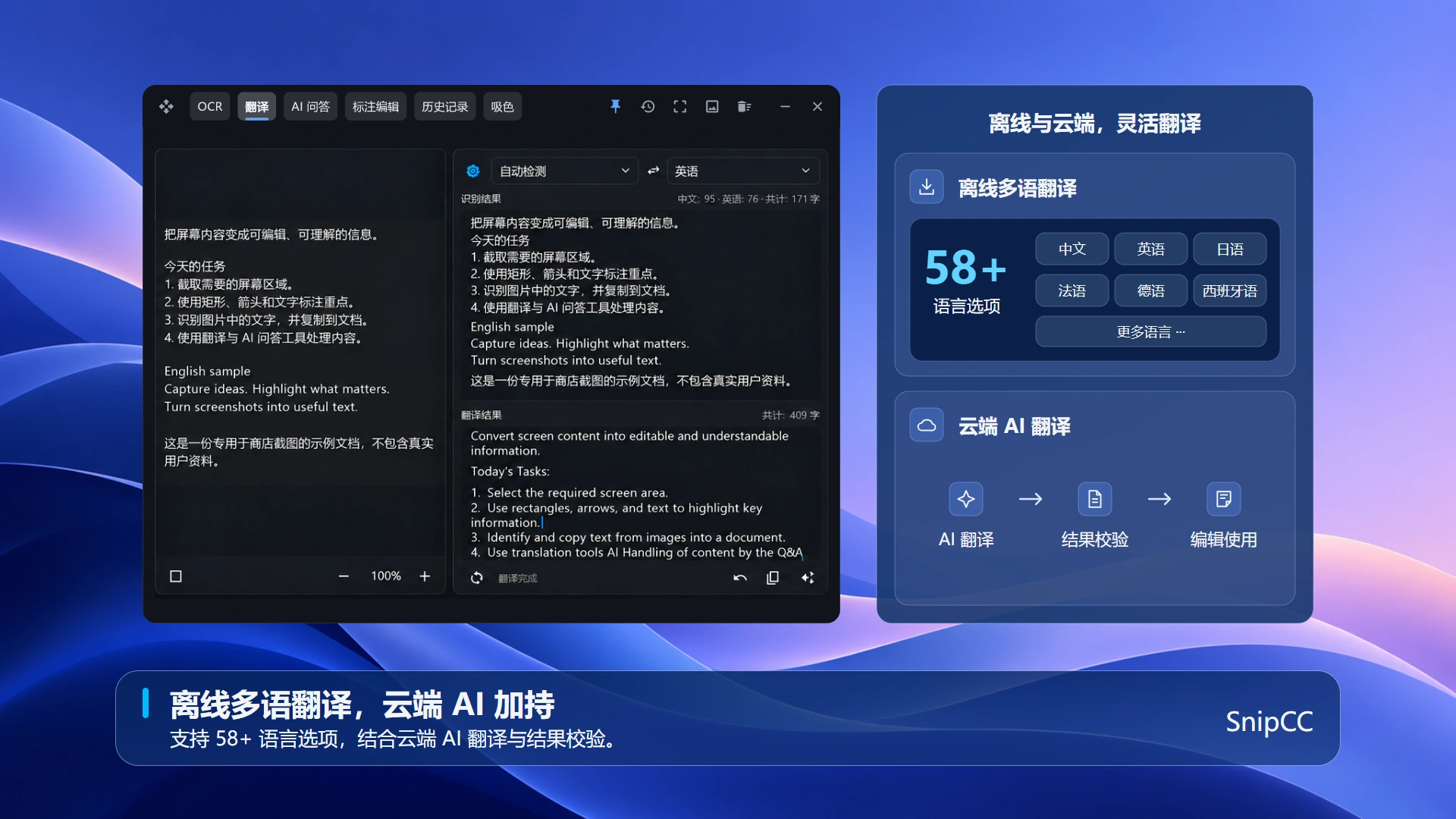
How do local and cloud translation differ?
After installing a local model, you can use its supported translation capabilities. Initial downloads require an internet connection. Cloud translation needs a connection and sends relevant content to the configured service. Language support depends on the selected model.
Fees and availability
Basic features include lightweight translation. Access to all available translation models is a membership benefit, subject to device requirements, installation and service configuration. Membership does not automatically cover third-party fees.
Translations may be inaccurate. Review them before use. See OCR guide to improve source text recognition, or see Frequently asked questions for requirements.
Model and language setup
Confirm the model supports the target language before translating. Install local models first; cloud models require credentials and connectivity. Availability depends on membership, device requirements and installation.
Frequently asked questions
- Translation differs from the screenshot?
- Check the OCR source text first, then verify the target language and terminology. OCR errors affect the translation.
- Translation request failed?
- For local models, check installation status. For cloud services, check the connection, credentials and remaining quota.
Check language direction and copy the translation
Check the source and target languages and use Swap Languages if needed. Review numbers, names and terms in the result, then use Copy Translation to paste it into your document. Language support depends on the selected and installed model.